Discover Camcevi.

for YOUR PATIENTS—AND YOUR PRACTICE

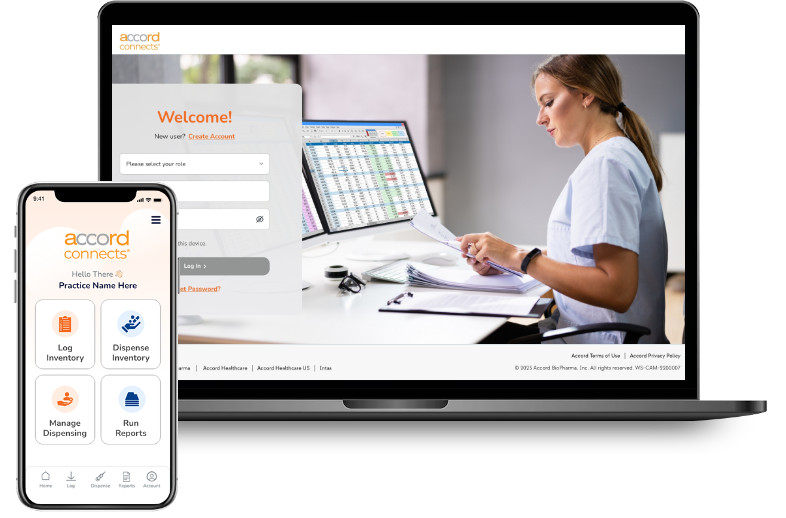
More than an inventory management system, AccordConnects also helps optimize your practice

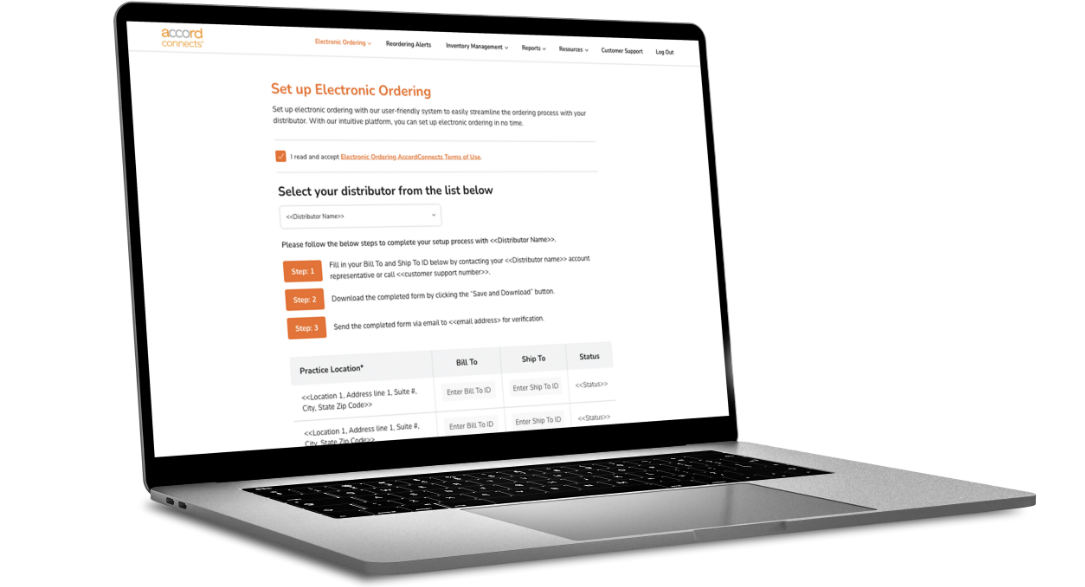
Replenish your inventory—with just one click

Electronic ordering makes it simple, so you have more time to spend with your patients

With the desktop version, you can order electronically, plus you can set up email alerts*

*Electronic ordering available only through Besse or McKesson

helping-patient
notes-image

HELP ENSURE PATIENTS RETURN For THEIR NEXT DOSE

Reports can help you track patients to minimize missed doses and maintain continuity of care

Reports also can help you anticipate patient visits so you can manage inventory efficiently

GET QUICK ACCESS TO IMPORTANT DATA

We make it simple to keep track of available inventory, dispensed inventory, and projected next doses

You can enter inventory in 2 ways: with the AccordConnects barcode scanner or on a desktop

camcevi-expiry-check
inventory-expiration-date

TRACK Inventory Expiration dates

Help manage your inventory with one or more of the reports offered

Reports optimize operational efficiencies by helping you track when inventory is going to expire

Have a question? Here are 3 ways to get the support you need:

Connect with your rep

Call us at 1-866-258-7151
Mon to Fri, 8 AM to 8 PM ET

EXPLORE THE LIBRARY OF RESOURCES

Learn how simple it is to add and manage users within your practice, capture injection sites,
print a dispense report, forecast inventory needed for future appointments, and more.

video placeholder

Barcode Scanning

video placeholder

Manage Dispensed and On-hand Inventory

video placeholder

Run Reports

video placeholder

Electronic Ordering

video placeholder

Reordering Alerts

User manual

A guide to electronic ordering, reordering alerts, and more

Download Enrollment FormDownload PDF
award-winning

Your one-stop Accord hub for inventory management and much more

Connect with your rep

Helps patients on CAMCEVI get the medicine they need—when they need it

connect1

My practice has its own proprietary inventory management system that I have to use. Why should I also use AccordConnects?

You can still use AccordConnects for electronic ordering via your browser. Plus, AccordConnects is more than an inventory management system with next-dose notifications. When combined with AccordCares, it is a patient flow optimization tool that can help with patient co-pay support, benefits verification, and more.

connect2

I don’t want to learn a whole new system. Is it complicated?

No, AccordConnects is easy to use. We offer one-on-one training, both in person and virtually, to get you started.

connect3

Can I get rep support to train our staff on how to use AccordConnects?

Yes, we can absolutely help you get set up! In fact, we suggest scheduling in-person or virtual training for key staff in the office to make sure everyone is familiar with the system.

connect4

How will AccordConnects help streamline processes in my practice?

With AccordConnects, it’s easy to manage your CAMCEVI inventory, saving you time and effort. You can manage dispensed inventory and track your current stock, and seamlessly replenish your inventory with just one click. You also can run reports including available inventory, dispensed inventory, and projected next dose reports to assist practice administrators with reconciliation and scheduling.

connect1

How can I access AccordConnects?

You can access AccordConnects by:

1.downloading and installing the AccordConnects app on your Android or iOS smartphone. To download, visit the iOS App Store or Google Play Store; or

2.use your internet browser and type https://www.accordconnects.com to get started.

connect2

How do I log into AccordConnects?

Please be aware that to log in, the AccordConnects App must be present and open on your smartphone, or you must be connected to your internet browser (https://www.accordconnects.com). Once you launch AccordConnects, take the following steps as needed:

Step 1: If this is your first time, you must create an account for your healthcare practice (use the “Create Account” option). We recommend appending your practice location to your account name, especially if you have multiple locations.

Step 2:If you have an account and have not preselected “Remember me on this device,” enter your email and password.

Step 3:Click “login” and your account will open. Thereafter, your account information will be present and accessible.

connect3

Is my data secure when using AccordConnects?

Yes. The AccordConnects data is securely stored in the cloud and uses current industry standards. You can learn more about our privacy policy and terms of use by visiting https://www.accordconnects.com.

connect4

How do I log inventory using AccordConnects?

Step 1: From the home screen, tap “Log Inventory”.

Step 2: A screen will appear with directions to begin logging inventory. Tap “Click to scan the QR Code”, and click the camera icon to activate the camera or tap “Enter data manually”.

Step 3: Follow the prompts on the screen to verify the information recorded. Here you will see the NDC number, serial number, expiration date, and lot number for the batch of doses received.

Step 4: On the next screen, click “Enter Quantity”, which will be prefilled with the value “1”, and then click Next. Inventory must be scanned one at a time.

Step 5: Check to see that this information is correct and tap “Confirm to Receive”. A pop-up alert will appear confirming you successfully logged your inventory.

You are now ready to begin dispensing your doses from your stock of inventory.

connect3

Can I use the AccordConnects Desktop tool the same way as the AccordConnects App?

The AccordConnects Desktop tool is essentially a mirror image of the AccordConnects App. Inventory scanned or dispensed via the App can be viewed in real-time on the Desktop version. It is typically a better venue for viewing reports than the App, as it offers better viewability of the generated reports.

Have more questions about technical support, account issues, and billing/reimbursement?

    connect with a CAMCEVI® representative

    Complete the forms with your information to reach a CAMCEVI representative near you.

    *Required fields

    IMPORTANT SAFETY INFORMATION

    Do not use CAMCEVI® in patients with hypersensitivity to GnRH, GnRH agonist analogs, or any of the components of CAMCEVI as anaphylactic reactions to these drugs have been reported in the medical literature.

    CAMCEVI, like other GnRH agonists, causes a transient increase in serum levels of testosterone during the first week of treatment which can cause transient worsening of symptoms. As with other GnRH agonists, cases of ureteral obstruction and spinal cord compression have been observed, which may contribute to paralysis with or without fatal complications.

    Patients with metastatic vertebral lesions and/or with urinary tract obstruction should be closely observed during the first few weeks of therapy.

    Hyperglycemia and an increased risk of developing diabetes have been reported in men receiving GnRH agonists. Blood glucose levels should be monitored and managed according to current clinical practice.

    Increased risk of myocardial infarction, sudden cardiac death, and stroke has been reported in association with the use of GnRH agonists. The risk appears low based on the reported odds ratios, and should be evaluated carefully along with cardiovascular risk factors when determining a treatment for patients with prostate cancer. Patients should be monitored for cardiovascular disease and be managed according to current clinical practice.

    Androgen deprivation therapy may prolong the QT/QTc interval. Consider periodic monitoring of electrocardiograms and electrolytes.

    Convulsions have been reported in patients receiving GnRH agonists, like CAMCEVI. Patients experiencing convulsions should be managed according to the current clinical practice.

    CAMCEVI can cause severe cutaneous adverse reactions (SCARs), including Stevens-Johnson syndrome/toxic epidermal necrolysis, drug reaction with eosinophilia and systemic symptoms (DRESS), and acute generalized exanthematous pustulosis (AGEP). Interrupt CAMCEVI if signs or symptoms of SCARs develop. Permanently discontinue if SCARs are confirmed.

    Monitor serum levels of testosterone following injection of CAMCEVI.

    Based on findings in animal studies and mechanism of action, CAMCEVI may cause fetal harm when administered to pregnant women.

    The most common (≥10%) adverse reactions during a median follow-up of 336 days were hot flush, hypertension, injection site reactions, upper respiratory tract infections, musculoskeletal pain, fatigue, and pain in extremity.

    INDICATION

    CAMCEVI is indicated for the treatment of adult patients with advanced prostate cancer.

    Click here for full Prescribing Information.

    Back to TopBack to Top button
    Back to TopBack to Top button